
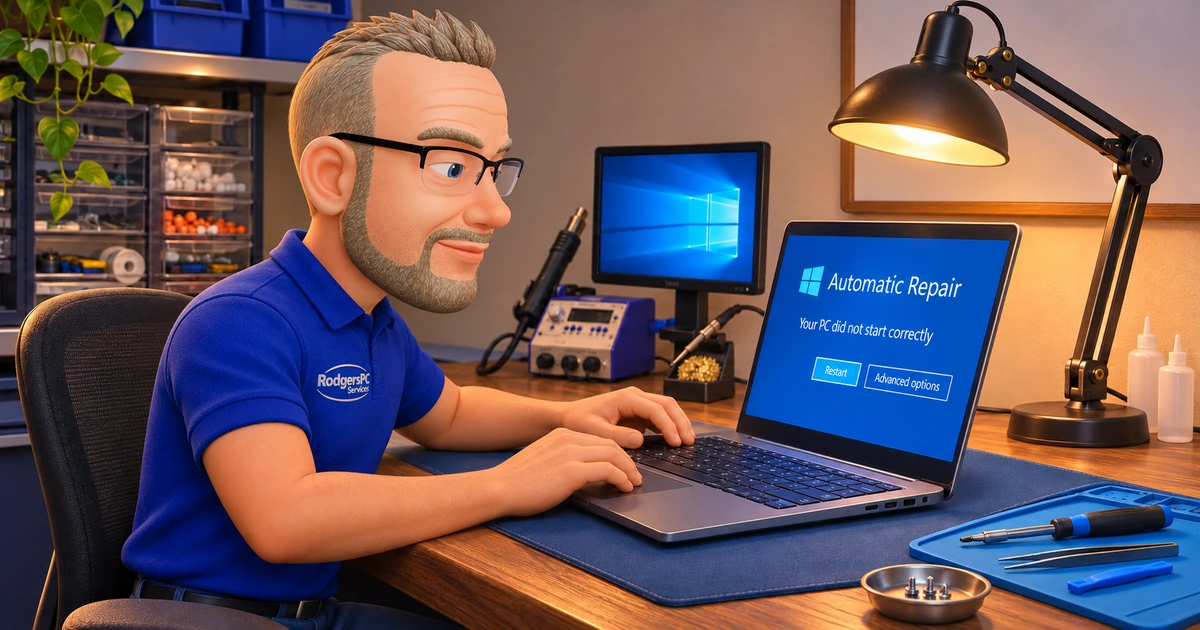
Over the last two weeks at RodgersPC, we’ve had Windows computers come into our Belton shop that wouldn’t start normally. Some kept restarting. Others kept going back to Automatic Repair or Recovery. On some jobs, the trouble started around a Windows update. We haven’t traced every machine back to the same update, and the repairs haven’t all been the same.
What got our attention was how far apart the outcomes were. On two machines, one discovery got Windows booting again. On the toughest jobs, getting Windows running was only the beginning. We still had to bring back as much of the customer’s setup as we could.
The breakthrough that got two computers booting again
An HP desktop and a Lenovo ThinkPad T580 both kept going back to Recovery. The usual Windows repairs didn’t get either one starting normally. On the ThinkPad, even Safe Mode wouldn’t load.
The breakthrough was outside Windows. Turning off Intel virtualization (VT-x and VT-d) in the BIOS got both machines booting again. On the ThinkPad, that meant we could keep the existing Windows installation, files, and programs in place.
An HP laptop with a similar startup problem needed a different repair. It stopped booting while updates and drivers were being installed during a system transfer. Reversing the pending Windows update work got that one loading again. Same kind of complaint at the counter, different work on the bench.
When we had to build the computer back from scratch
One Windows installation simply wasn’t coming back. We rebuilt that customer’s setup by hand, bringing over the files, pictures, and application data we could still access.
On two other jobs, we installed new drives and put a fresh copy of Windows 11 on each. We repaired the old Windows installations as far as we could, then used PCTrans to move what we could from the original drives to the new ones.
A fresh copy of Windows is not the same thing as getting your computer back. A clean desktop doesn’t bring back your family pictures, your work files, or the data your programs depend on. That’s why we try to repair the Windows installation you already have. When we can’t save it, the job becomes getting as much of your working setup back as the old drive will let us.
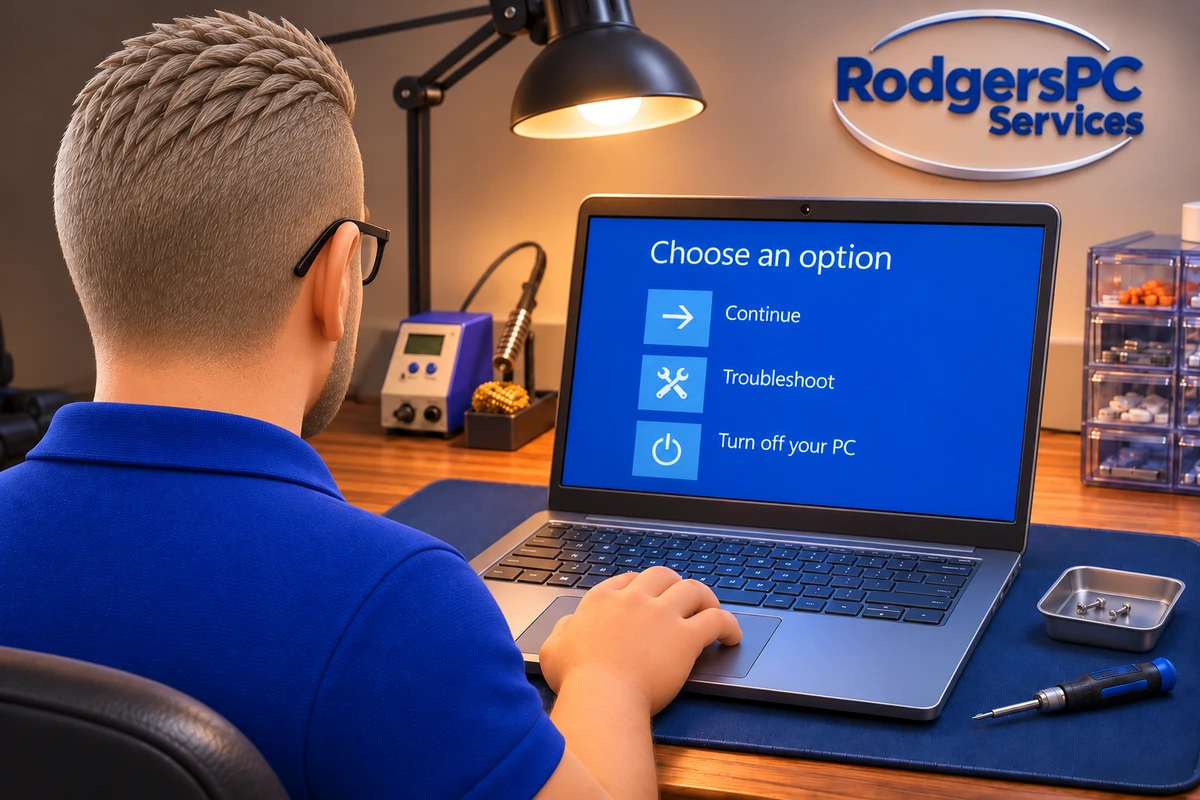
If it keeps going back to Automatic Repair, shut it down and bring it in
If your computer won’t start or keeps looping back to Recovery, turn it off and bring it to RodgersPC. At check-in, just tell us Windows won’t start. We’ll see what it’s doing ourselves on the bench.
If we can get your existing setup running again, that’s what we’ll work toward. If it needs a rebuild or migration, we’ll tell you what we can bring over and talk through your options before moving ahead.
Local. Loyal. Wired Different.
RodgersPC – Computer Repair & Sales
511 Lake Rd, Suite 104, Belton, TX 76513
Call (254) 613-3567 · Get directions and contact RodgersPC